
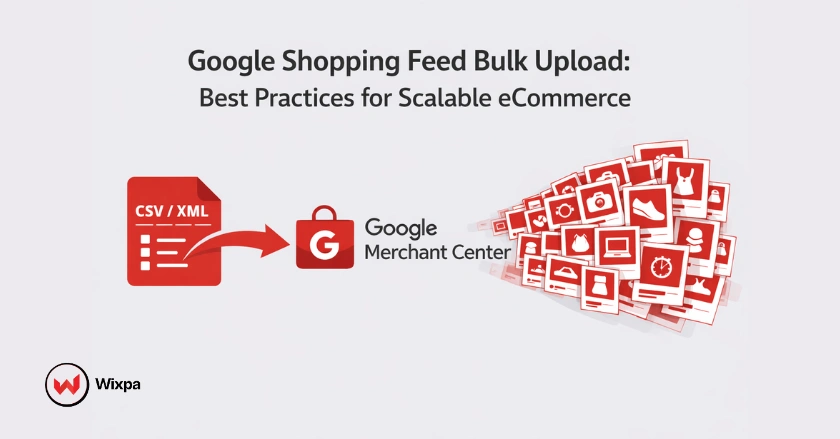
Uploading products to Google Shopping manually one by one is a recipe for burnout. A Google Shopping feed bulk upload is the standard for serious eCommerce businesses, allowing you to submit thousands of product data points simultaneously through a single file or API connection.
By mastering bulk uploads, you move beyond simple data entry into strategic feed management. Whether you are running a boutique store in Austin, Texas, or a global enterprise, optimizing your bulk data ensures your products appear for the right search queries, preventing disapproved items and wasted ad spend.
Quick Summary
- What is it? A bulk method to upload multiple products to Google Merchant Center using CSV, XML, or API connections.
- Why use it? Saves time, maintains data accuracy, and updates prices and stock at scale.
- Best practice: Use correct GTINs, optimized titles, and high-quality images.
- Common mistake: Ignoring Google Shopping policies, causing item disapprovals or account suspension.
Introduction to Google Shopping Feed Bulk Uploads
Google Shopping has evolved from a simple price comparison engine into a dominant visual search platform. For retailers, it’s no longer optional. With features like free listings and the integration of Shopping ads into YouTube and Google Images, the visibility potential is massive. However, visibility depends entirely on data. If your bulk upload contains errors, Google will not display your products, regardless of your ad budget.
What is a Google Shopping Feed and Why Bulk Management Matters
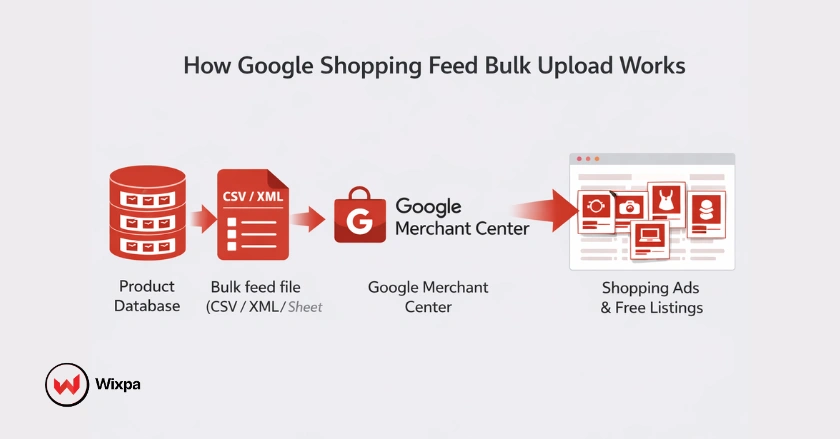
A Google Shopping feed is a structured file containing a list of products and their attributes, like ID, title, description, link, image link, price, and availability. Bulk management matters because dynamic inventory changes constantly. If you sell 5,000 SKUs and run a 20% off sale, updating those prices manually is impossible. Bulk uploads allow you to push those changes instantly across your entire catalog.
Benefits of Mastering Bulk Uploads for eCommerce Stores
- Scalability: effortless addition of new seasonal lines or product variants.
- Accuracy: Reduces human error associated with manual data entry.
- Speed: Updates stock levels immediately to prevent selling out-of-stock items.
- Optimization: Allows for testing different titles and images across large product groups to see what converts best.
Google Merchant Center and Data Quality
Before uploading a single file, your Google Merchant Center (GMC) account must be verified. This involves claiming your website URL to prove ownership. Without this step, Google will reject any bulk upload attempts. Ensure your business information, address, customer service contact, and return policy are accurate and match your website exactly.
Which Product Attributes Are Required for Bulk Uploads?
Your feed is built on specific attributes. Some are mandatory, while others are optional but highly recommended.
- id: The unique identifier for the product (SKU).
- title: The name of your product (critical for SEO).
- description: Relevant details about the item.
- link: The landing page URL.
- image_link: The URL of the main product image.
- price: The cost of the item.
- availability: In stock, out of stock, or preorder.
The Importance of Accurate and Consistent Product Data
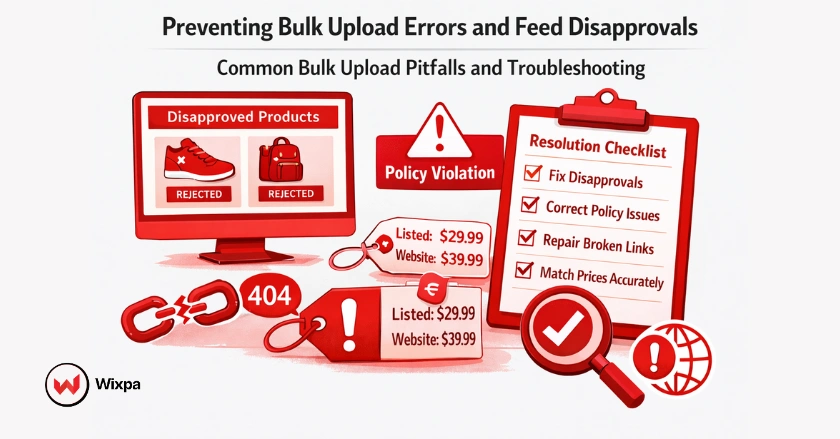
Google values trust above all else. If your bulk feed says a product costs $50, but the landing page says $55, Google will disapprove the item. Consistent data ensures a smooth user experience. If users click an ad expecting one thing and find another, they bounce, and Google takes note, potentially lowering your ad rank or suspending your account.
What Are the Best Google Shopping Feed Bulk Upload Methods?
For smaller stores or those just starting, using a CSV file or Google Sheets is effective. You can download a template from Merchant Center, fill in your product data, and upload it directly.
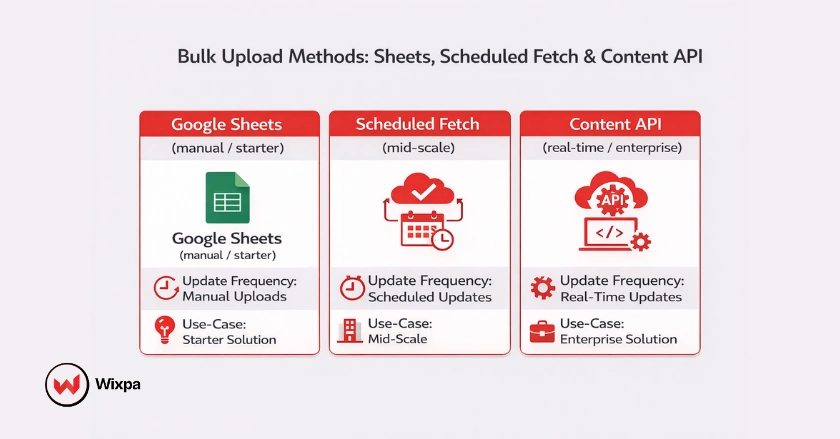
- Create: Set up a Google Sheet using the GMC add-on.
- Populate: Fill in your product attributes.
- Submit: “Fetch” the feed within Merchant Center.
Scheduled Fetches (HTTP/FTP)
This is the most common method for mid-sized stores. You host a file (XML or TXT) on your server, and tell Google to “fetch” (download) it at a specific time every day. This ensures that any changes made on your website during the day are reflected in Google Shopping the next morning without you having to lift a finger.
Content API for Shopping
The Content API for Shopping allows apps to interact directly with the Merchant Center platform. This is ideal for large inventories where prices or stock levels change by the minute. Instead of waiting for a daily fetch, the API pushes updates immediately as they happen.
Leveraging Third-Party Feed Management Software
Tools like Wixpa, Channable, or GoDataFeed sit between your eCommerce platform (like Shopify or Magento) and Google. They allow you to manipulate data in bulk before it hits Google. For example, you can set a rule to automatically append “Free Shipping” to the titles of all products over $50, without changing the actual product names on your website.
Best Practices for Bulk Product Data Optimization
Optimizing product data in bulk improves search relevance and click-through rates. Small improvements at scale can significantly impact Shopping performance.
Crafting Compelling Product Titles in Bulk
The title attribute is the single most important factor for search relevance.
- Front-load key information: Put the brand, product type, and key differentiator at the start.
- Structure matters: Brand + Product Type + Color + Size.
- Example: Instead of “Running Shoes,” use “Nike Air Zoom Pegasus 38 Men’s Jogging Shoes Grey Size 11.”
Enriching Product Descriptions for Google Search
Don’t just copy the manufacturer’s description. Use the description attribute to include relevant keywords, material details, and use cases. While descriptions affect ranking less than titles, they are crucial for conversion when a customer clicks “More details.” Keep the most important information in the first 160-500 characters.
Accurate Categorization
Google uses its own taxonomy (Google Product Category), but also allows you to define your own (product_type).
- Google Product Category: Use the ID or specific string from Google’s list (e.g., Apparel & Accessories > Clothing > Shirts & Tops).
- Product Type: Use your store’s breadcrumbs (e.g., Home > Kitchen > Coffee Makers). This helps you structure your Shopping campaigns later.
High-Quality Product Images
Images must be at least 100×100 pixels (250×250 for apparel), but larger is better. Ensure they are on a white background with no watermarks or text overlays. In a bulk upload, ensure all image_link URLs are live and publicly accessible (no password protection).
Ensuring Price and Availability Accuracy Across All Products
Discrepancies here trigger “Preemptive Item Disapprovals.” Ensure your feed update schedule matches your website’s inventory update cycle. If you update your site at midnight, schedule the Google fetch for 1:00 AM.
Critical Product Identifiers
Global Trade Item Numbers (GTINs) are mandatory for most manufactured products. These are UPCs, EANs, or ISBNs.
- Don’t fake it: Never plug in random numbers for GTINs.
- Brand: Always include the brand name.
- MPN: If a GTIN doesn’t exist, provide the Manufacturer Part Number (MPN).
Harnessing Custom Labels for Campaign Segmentation
custom_label_0 through custom_label_4 allow you to group products for bidding.
- Label 0: Seasonal (Winter, Summer)
- Label 1: Margin (High, Low)
- Label 2: Best Sellers
- Label 3: Clearance
- Label 4: Price Bracket (<$20, >$50)
Managing Product Variants with item_group_id
If you sell a t-shirt in Red, Blue, and Green, they are variants. They should all share the same item_group_id but have unique SKUs and image links. This tells Google to show them as options of the same product rather than disparate items cluttering the search results.
Optimizing Shipping Costs and Tax Settings in Bulk
You can set shipping at the account level or the item level. For bulk accuracy, use the shipping attribute if products vary wildly in weight. For taxes, US merchants can usually set this at the account level based on the states where they have a nexus.
Advanced Bulk Upload Techniques
Advanced feed strategies allow advertisers to react quickly to promotions and inventory changes without altering core product data.
Using Supplemental Feeds for Targeted Bulk Updates
A primary feed contains your core data. A supplemental feed adds to or overrides that data. If you want to run a “Summer Sale” promotion but don’t want to change your main inventory file, upload a supplemental feed containing just the IDs and the sale_price attribute. Google merges them automatically.
Implementing Automated Rules for Feed Transformation
Within Merchant Center, “Feed Rules” act as simple logic statements.
- Example: “If description contains ‘red’, set color to ‘Red’.”
- Example: “If price is less than 50, set custom_label_0 to ‘Under 50’.”
This helps fix data gaps without needing a developer to change the source code.
Use of Bulk Editing Tools within Google Merchant Center
For quick fixes, you can download your feed from GMC, edit it in Excel, and re-upload it. However, be careful, this is often a manual override that will expire or be overwritten by the next scheduled fetch if not managed correctly.
Common Bulk Upload Pitfalls and Troubleshooting
Even optimized feeds can face issues over time. Identifying common errors early prevents performance drops and account risks.
1. Preventing and Resolving Disapprovals and Policy Violations
Check the “Diagnostics” tab in Merchant Center weekly. Common errors include:
- Promotional text in images: Remove “Sale” or logos from the main image.
- Broken links: Ensure all URLs lead to 200 OK pages, not 404s.
- Missing value [shipping]: Ensure shipping is defined for all items.
2. Dealing with Data Inconsistencies and Misspellings
A bulk upload magnifies small errors. If you misspell “Bluetooth” as “Blutooth” in your source data, it affects every product with that attribute. Use the “Find and Replace” tools in your spreadsheet or feed management software before uploading.
3. Understanding Ad Policies and How to Avoid Violations
Google has strict policies on “Restricted Businesses” (like alcohol or healthcare) and “Editorial Standards” (no caps lock, no gimmicky punctuation). Review the Shopping Ads Policy center regularly, as violations can lead to permanent account suspension.
Monitoring, Testing, and Improvement
Feed optimization is an ongoing process. Continuous monitoring helps maintain data quality and improve long-term performance.
Tracking Performance with GA 4 and Merchant Center
Link your Merchant Center to Google Analytics 4 (GA4). This allows you to see not just clicks, but which products from your bulk feed are actually driving revenue. You might find that products with “Blue” in the title convert better than “Navy,” prompting a bulk title update.
A/B Testing Bulk Optimization Strategies
Try changing the product_type or title structure for a specific brand in your feed for 30 days. Measure the click-through rate (CTR) before and after. If the new structure wins, roll it out to the rest of the feed.
Establishing a Regular Feed Update Schedule
Data goes stale fast. Set your feed to fetch daily at a minimum. If you have high turnover, use the Content API or multiple daily fetches (up to 4 times a day is standard for XML fetches) to ensure your ads never run for out-of-stock items.
Pro Tips for Feed Success
- Don’t set it and forget it: The market changes. Your feed needs weekly check-ins.
- Use Supplemental Feeds for Sales: Don’t mess up your master data for a 3-day sale. Use a supplemental feed to override prices temporarily.
- Watch your “Destination”: Ensure your items are enabled for “Shopping Ads,” “Free Listings,” and “Dynamic Remarketing” within the feed settings.
Final Thoughts
A Google Shopping feed bulk upload is the engine room of your eCommerce advertising. It might seem technical, but it’s really just about organization and accuracy. By maintaining a clean, optimized feed, you aren’t just following rules; you are building a better experience for your future customers. Start with a solid foundation, automate where possible, and always keep an eye on your data quality.
FAQ
1. How often should I upload my Google Shopping feed?
You should upload your Google Shopping feed at least once every 24 hours. Daily updates ensure prices, availability, and inventory are accurate, preventing item disapprovals.
2. Can I create a Google Shopping feed using Excel?
Yes, you can create a Google Shopping feed using Excel. Please save the file as CSV or TSV before uploading it to Google Merchant Center.
3. What is the maximum file size for Google Shopping bulk uploads?
Google Merchant Center supports bulk feed uploads up to 4GB. Larger catalogs should use multiple feed files or the Content API.
4. Why do products get disapproved after a bulk upload?
Products are usually disapproved due to policy violations, price mismatches, broken links, or missing required attributes like GTINs. The Diagnostics tab shows exact errors.
5. What is the difference between a Primary and Supplemental feed?
A Primary feed creates products in Google Merchant Center. A Supplemental feed updates existing products but cannot create new listings.
6. How can Shopify stores manage bulk feed updates more easily?
Shopify stores often use feed management apps like Wixpa to automate bulk uploads, apply rules, and keep product data synchronized with Google Merchant Center.