
Struggling to get the most out of your Google Shopping campaigns? Custom labels in Google Merchant Center are key to transforming basic product feeds. They help create targeted ads that drive real results.
Quick Summary
Custom labels in Google Merchant Center let you create five flexible product attributes. You can use (custom_label_0 through custom_label_4) to segment your inventory strategically. These labels help you target campaigns accurately, optimize bidding, and track performance. This boosts your return on ad spend (ROAS) by giving you better control over your Google Shopping ads.
Why Custom Labels Matter in Google Merchant Center?
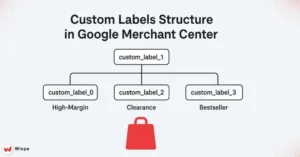
Custom labels are tags you create for products in your Google Merchant Center feed. These labels allow you to organize products in any way you prefer. They offer more flexibility than fixed attributes like brand or product category.
Think of custom labels as sticky notes for your products. You can label high-margin items as “premium.” For seasonal products, use “holiday-2025.” Tag slow-moving inventory as “clearance.” This flexibility transforms how you approach campaign management.
Moving Beyond Basic Product Segmentation
Standard product attributes inform Google about your products. Custom labels guide Google on how to handle them in your marketing strategy. This distinction is key for boosting profitability, not traffic volume.
Many marketers only use Google’s automatic product groupings. This means they miss chances to match their ad spend with business goals. Custom labels bridge this gap by putting strategic control back in your hands.
Boost Success with Custom Labels in GMC
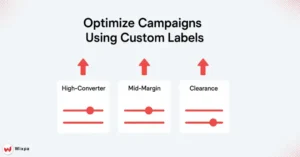
Performance-Based Organization: Segment products by conversion rates, profit margins, or customer lifetime value. Create labels like “high-converter,” “medium-margin,” or “repeat-buyer favorite” to optimize bidding strategies accordingly.
Strategic Campaign Structure: Group similar products into meaningful segments. This way, you avoid managing hundreds of individual items. This approach reduces campaign complexity while increasing targeting precision.
What’s the impact on bidding and ROAS?
Custom labels let you adjust bids based on actual business value. This goes beyond using broad product categories. You can:
- Place strong bids on high-margin items labeled “premium.”
- Reduce bids for clearance inventory tagged “low-priority.”
- Adjust seasonal campaigns using labels like “Winter 2025.”
- Test different strategies across similar product groups.
This focused method usually leads to a 15-30% increase in ROAS over broader product groupings.
How to Install Custom Labels: Step by Step
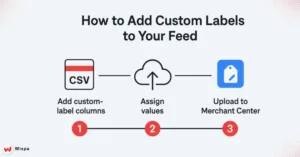
Method 1: Adding Labels to Your Product Feed
- Open your product feed file (CSV, TXT, or XML format).
- Add custom label columns: Include headers like custom_label_0, custom_label_1, etc.
- Assign meaningful values: Use consistent naming conventions like “high-margin,” “seasonal,” or “bestsellers.”
- Upload your updated feed to the Google Merchant Center.
Method 2: Using Feed Rules in Merchant Center
Navigate to your Merchant Center account and access the Feed Rules section. Create rules that assign labels according to existing product attributes.
Example rule: If price > $100, then custom_label_0 = “premium.”
This method is great for updating labels. You can do this without changing your source feed file.
Method 3: Leveraging Supplemental Feeds
Supplemental feeds offer flexibility for businesses that cannot change their main product feed. Upload a separate file containing only product IDs and custom label values.
This method is key for agencies with many clients. It also helps businesses with complex feed management systems.
Maximize impact with custom labels
Profit Margin Labels: Tag products as “high-margin,” “medium-margin,” or “low-margin” based on costs.
Divide more budget to profitable items while maintaining visibility for strategic loss leaders.
Conversion Rate Groupings: Label products based on historical performance data. “Top-converter” items need prime placement and higher bids. In contrast, “test products” must have close monitoring and cautious budgets.
Price Point and Promotional Strategies
Create labels for different price tiers. This will help optimize your bidding strategies for all your products. Budget shoppers and premium buyers need different strategies. Custom labels help achieve this goal.
Use labels such as “under-50,” “mid-range,” and “luxury” to match your ads and bids with what customers expect and their budgets.
Pro Tips for Advanced Custom Label Management
Master the art of using custom labels in Google Merchant Center with these expert tips. Fine-tune your labels. This helps with smarter campaign segmentation, better tracking, and peak ad performance.
Finding the Right Balance
Avoid over-segmentation that creates too many small, underperforming product groups. Begin with 3 to 5 key segments for each custom label. Then, adjust based on performance data.
Check your account often. Segments with fewer than 100 impressions a week usually need consolidation or removal.
Dynamic Strategy Implementation
Seasonal Adjustments: Update labels quarterly to reflect changing business priorities. Summer swimwear becomes “clearance” inventory in fall, requiring different bidding strategies.
Inventory Management: Use custom labels to manage stock levels. Label low-inventory items as “limited stock” to reduce aggressive bidding and prevent stockouts.
Common Mistakes to Avoid
Avoid the most frequent pitfalls when managing custom labels in Google Merchant Center. Fix labeling errors, keep data accurate, and ensure your product segmentation works well. This will lead to better campaign results.
Incorrect Value Assignment
Ensure consistent naming conventions across all custom labels. “High-Margin” and “high_margin” create separate segments, reducing campaign efficiency.
Check feed processing after updates. Errors in custom label formatting can stop proper product grouping in your campaigns.
Underutilizing Your Labels
Custom labels deliver value only when you use them for campaign optimization. Create specific product groups in Google Ads that leverage your custom label structure.
Set up automated bidding rules based on custom label performance. This approach ensures that your strategic segmentation translates into improved campaign results.
Measuring and Optimizing Performance
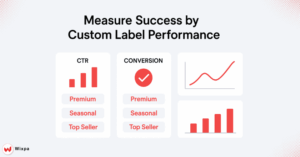
What metrics should you track?
Check performance by custom label segments using Google Ads reporting. Key metrics include:
- Click-through rates by label group
- Conversion rates for each segment.
- Cost per acquisition across different labels.
- Return on ad spend by custom label value
How often should you refine labels?
Review and update your custom label strategy monthly. Update your labeling system to match product performance changes over time.
Set up automated reports that highlight underperforming segments. This data-driven approach ensures continuous optimization without a manual oversight burden.
Transform Your Campaigns with Smart Segmentation
Custom labels represent the difference between generic product advertising and strategic campaign management. They transform your Google Shopping campaigns from broad-brush approaches into precision-targeted profit engines.
Successful e-commerce advertisers know that how they organize product data affects campaign performance. Custom labels provide the foundation for this strategic advantage.
Start using custom labels today. Begin with one easy segmentation strategy. Measure the results, then expand your approach based on the performance data. Your better ROAS will show how smart product organization boosts modern digital marketing.
Final Thoughts
Mastering custom labels in Google Merchant Center helps you control your Shopping campaigns. They align ad spending with your real business goals. Organizing products by profit margin, seasonality, or performance helps create strong bidding strategies. This way, you can boost efficiency and ROAS.
Start simple, test consistently, and refine your approach based on insights. With the right custom label structure, your product feed turns into more than data. It becomes a powerful tool for growth, precise targeting, and lasting eCommerce success.
FAQ
1. What are custom labels in Google Merchant Center?
Custom labels in Google Merchant Center let you group products by performance, season, or price range. This helps optimize campaign targeting and bidding.
2. How do I create custom labels in Google Merchant Center?
To create custom labels in Google Merchant Center, go to your product feed and assign label values using feed rules. Automate and sync label creation easily with apps like Wixpa Google Shopping Feed.
3. Why use custom labels in Google Merchant Center?
Using custom labels in Google Merchant Center helps segment products by performance or strategy, improving ad efficiency and ROI. They make campaign management easier, helping advertisers adjust bids based on product trends, stock, and seasonal goals.
4. How many custom labels can I add in Google Merchant Center?
Google Merchant Center allows five custom labels per product (from 0–4). Each label can represent criteria like season, margin, or price tier, enabling smarter bid strategies and better segmentation for Google Shopping campaigns.
5. How do custom labels improve Google Shopping ads?
Custom labels in Google Merchant Center enhance campaign control by categorizing products for optimized bidding and analytics. They allow performance-based segmentation, making it easier to scale high-performing items and reduce spending on low converters effectively.