
Tired of manually updating your product listings for Google Shopping? There’s a much better way. Automate the Google Shopping feed and save time and also reduces errors. It also helps you connect with more customers on Google Search.
This guide covers all you need to know. It helps you set up your Google Merchant Center and choose the best automation method. Let’s get your products seen without the manual busywork.
Quick Summary
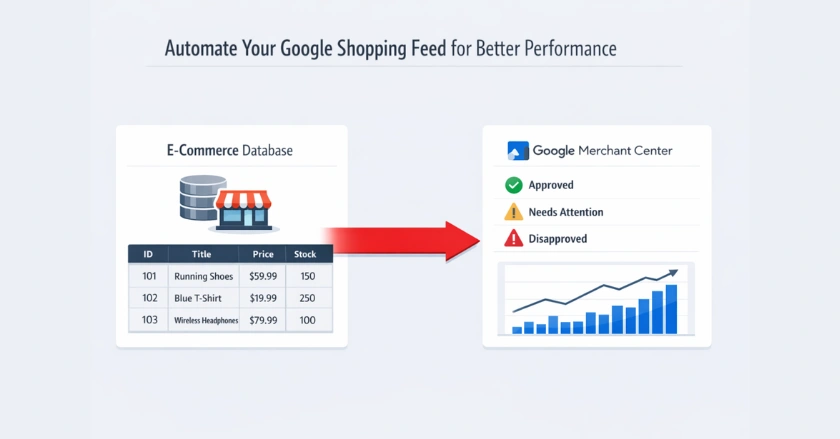
Automating your Google Shopping feed links your store’s product data to Google Merchant Center. This process keeps your listings accurate and current. So, you won’t need to upload them manually. You can use e-commerce platform integrations or feed management tools. They help you schedule automatic updates and optimize product info. This way, your Shopping Ads perform better and drive more sales for your store.
Understanding the Power of Google Shopping and Automated Feeds
To get the most out of Google Shopping, you need to understand how automated feeds work. Manual updates can be a real headache, especially as your product catalog grows. Automation is the key to scaling your efforts efficiently.
What is a Google Shopping Feed, and why does it matter?
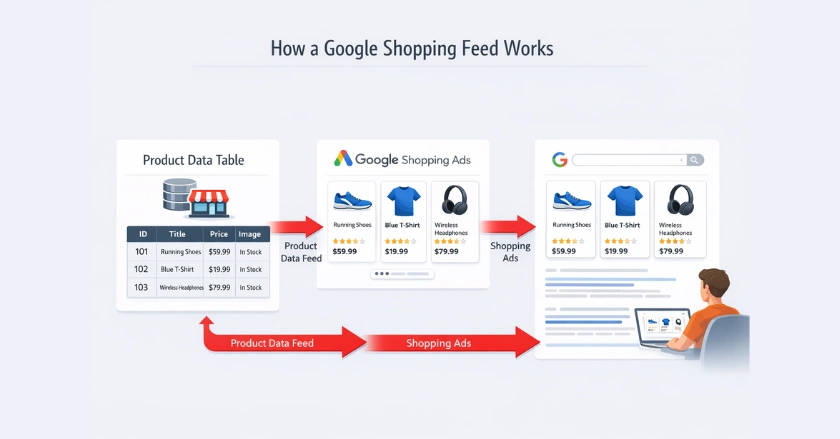
A Google Shopping feed is a file. It holds all the product details for your online store. Think of it as a catalog. It has product titles, images, prices, and descriptions. This product feed helps Google create your Shopping Ads. It shows them to potential customers.
A clear feed is vital. It keeps your ads accurate and relevant. When your product data is accurate, Google matches your items to user searches. This boosts your chances of making a sale.
The “Why” of Automation: Beyond Manual Management
Manually creating and updating a product feed is time-consuming and prone to errors. Imagine having to update prices or stock levels for hundreds of products one by one. Automation removes this burden.
Automated feeds automatically sync your product data with Google Merchant Center. Changes in your store, such as a price drop or a new product launch, appear in your Google Shopping campaigns quickly. It’s not about saving time; it’s about maintaining accuracy and a competitive edge.
Google Merchant Center and Product Data
To automate, you need two things: a Google Merchant Center account and properly formatted product data. These are the foundational elements of any successful Google Shopping strategy.
Google Merchant Center (GMC)
Google Merchant Center (GMC) is where your product feed lives. It’s a free tool from Google that allows you to upload and manage your store and product information. From here, your product data is made available for Shopping ads and other Google services.
Setting up your GMC account is the first practical step. You’ll need to verify your website and configure your tax and shipping settings. Once this is done, you’re ready to connect your product data.
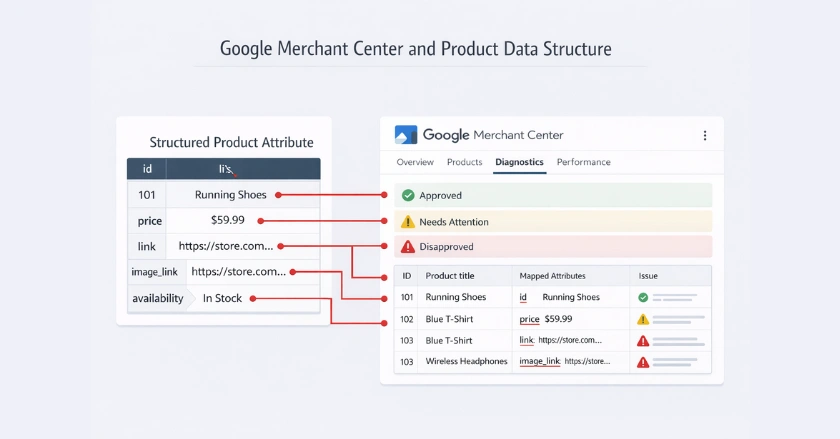
Google’s Product Data Specification and Attributes
Google has rules for formatting your product information. This is called the product data specification. This includes required product attributes like id, title, price, link, and image_link.
Following this specification is non-negotiable. If your data doesn’t meet Google’s standards, your products can be disapproved, preventing them from showing up in ads. Taking the time to structure your data correctly from the start will save you a lot of trouble later.
Which Automation Method Should You Choose for Your Feed?
There are several ways to automate your Google Shopping feed. The best method for you will depend on your e-commerce platform, technical skill, and how much control you want over your data. Let’s compare the most common options.
E-commerce Platform Integrations
- Most big e-commerce platforms, like Shopify and WooCommerce, have built-in apps or plugins. These tools help you create a product feed easily.
- These solutions are often the easiest to set up, requiring just a few clicks to connect your store to Google Merchant Center.
- This is a great starting point for beginners who want a simple, “set it and forget it” approach.
- Popular Shopify product apps can even help you create feeds for other sales channels like Instagram Shop or Bing Shopping Ads.
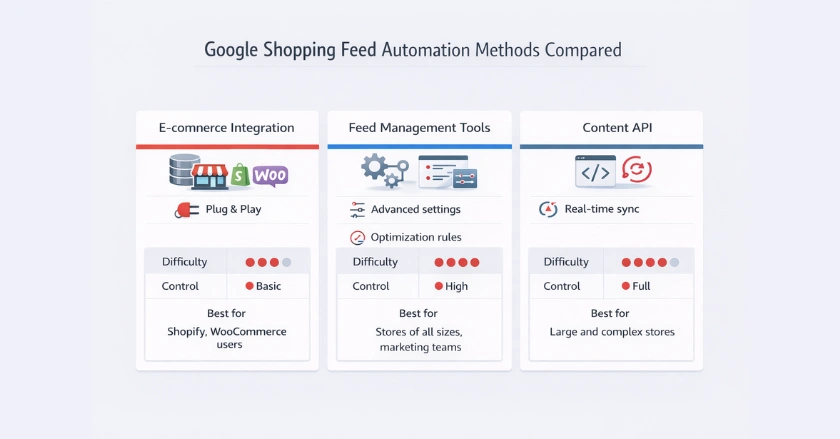
Dedicated Feed Management Solutions
- Tools like Wixpa Google Shopping Feed, or Feedonomics are powerful, dedicated platforms for feed management.
- They provide advanced tools to optimize your product data. You can create custom rules to adjust product titles or map custom fields.
- These solutions work best for larger stores or businesses. They help fine-tune product info, which boosts ad performance.
- They offer strong data quality checks. This helps you fix errors before they affect your Google Ads campaigns.
Content API for Shopping
The Content API for Shopping lets your app talk directly with Google Merchant Center in real-time. This method provides the highest level of control and speed. It’s ideal for large companies with developers who need to update many products often.
Google Sheets for Semi-Automated Feeds (and a Stepping Stone)
You can use the Google Sheets add-on for Google Merchant Center to manage your feed. It’s not fully automated, but you can schedule regular fetches. Google will then pull the latest data from your sheet. This is a good middle ground for small businesses that want more control than a basic app but aren’t ready for a dedicated feed solution.
Setting Up Your Automated Google Shopping Feed
Ready to get started? Here is a simplified walkthrough of how to set up your automated feed. The exact steps may vary slightly depending on your chosen method, but the core process remains the same.
- Connect Your Data Source to Google Merchant Center. First, you need to tell Google where to find your product data. In GMC, navigate to “Products” and then “Feeds.” Click the plus icon to add a new primary feed. Here, you will choose your input method, such as a scheduled fetch from a feed URL provided by your app or a direct connection via the Content API.
- Mastering Product Attribute Mapping. Once connected, ensure your store’s data fields correctly match Google’s required product attributes. For example, your “Product Name” field should be mapped to Google’s title attribute. Most apps handle attribute mapping automatically, but you may need to adjust it for custom fields or specific product types.
- Implementing Advanced Feed Rules and Filters: Use feed rules in Google Merchant Center to make bulk changes to your product data without altering your source data. You can use rules to add missing information, format product titles for better SEO, or filter out products you don’t want to advertise.
- Scheduling Automatic Updates. The final step is to schedule how often you want Google to fetch your feed. For most stores, a daily update is sufficient to keep prices and stock levels accurate. This ensures your Shopping Ads always reflect the most current product information.
How Do You Maintain and Optimize Your Automated Feed?
Setting up your automated feed is just the beginning. Ongoing maintenance and optimization are crucial for long-term success. A healthy feed leads to better ad performance and a higher return on investment.
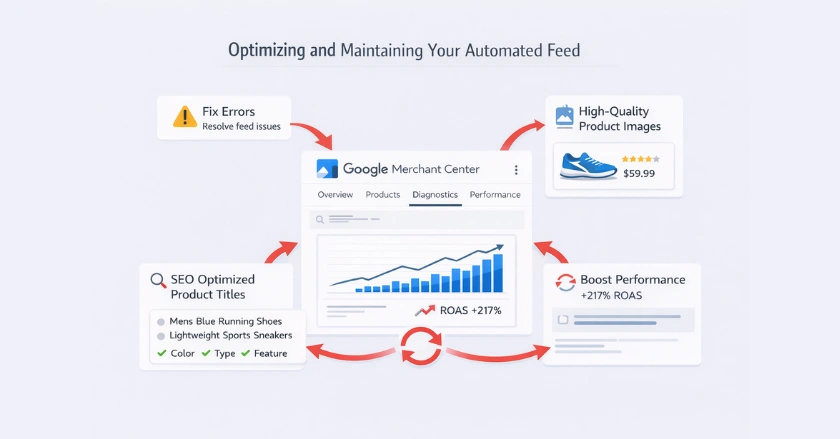
Proactive Data Quality Checks and Error Resolution
Regularly check the “Diagnostics” tab in your Google Merchant Center account. This is where Google reports any product-level errors or warnings. Address these issues promptly to prevent product disapprovals and keep your feed in good standing.
Managing “Found by Google” Products and Feed Overrides
Google may automatically discover products from your website. You can manage these in GMC, but it’s best practice to use your primary feed as the single source of truth. Use feed overrides to ensure the data you provide takes precedence over what Google finds.
Optimizing Product Data for Enhanced Performance
- Product Titles: Optimize your product titles with relevant keywords to improve visibility in Google Search. Include details like brand, color, and size.
- Product Images: Use high-quality, clear product images on a white background to attract clicks.
- Product Descriptions: Write compelling product descriptions that highlight key features and benefits.
Monitoring Performance and ROI of Your Automated Feeds
Use Google Ads and Google Analytics to track the performance of your Shopping campaigns. Monitor metrics like clicks, conversions, and return on ad spend (ROAS). Analyze which products are performing well and use that data to refine your optimization strategy.
Troubleshooting Common Automated Feed Issues
Even with automation, you might run into some issues. Knowing how to diagnose and fix common feed problems is essential for keeping your campaigns running smoothly.
Diagnosing and Fixing Product-Level Errors
The Diagnostics tab in GMC is your best friend for troubleshooting. It categorizes errors by severity and provides links to affected products. Common issues are:
- Missing product identifiers (like GTINs)
- Invalid prices
- Broken image links
Click on each error to see which products are affected and how to fix them.
Ensuring Feed Freshness and Accessibility
If you’re using the scheduled fetch method, ensure your feed URL is always accessible and not blocked by a password or robots.txt file. A failed fetch means your product data becomes stale, leading to inaccurate ads. Double-check that your feed is updating on the schedule you set.
Future-Proofing Your Google Shopping Automation Strategy
The world of e-commerce and digital advertising is constantly changing. A forward-thinking strategy will help you adapt to new requirements and scale your operations as your business grows.
Adapting to Google’s Evolving Requirements
- Google frequently updates its product data specification and policies. Stay updated by following the Google Merchant Center blog and announcements in the Google Advertiser Community.
- Staying proactive about these changes helps keep your feed compliant. It also lets you use new features, like Google Promotions or Performance Max campaigns, as they roll out.
Scaling Your Automation with Your Business
- As your product catalog expands, your automation needs may change. What works for a store with 50 products might not be efficient for one with 5,000.
- Re-evaluate your automation method annually. If you began with a simple app, think about upgrading. A stronger feed management solution or the Content API might offer better ROI for your growing business.
Final Thoughts
Automating your Google Shopping feed is one of the smartest moves you can make as an e-commerce store owner. It’s the key to scaling your advertising efforts efficiently and accurately.
Setting up an automated feed saves you time. It cuts down on costly errors, too. Plus, your product data stays fresh at all times. This leads to better ad relevance, improved campaign performance, and ultimately, more sales.
Don’t let manual updates hold your business back. Embrace the power of a Google Shopping feed generator and watch your store grow. A clean and automated product feed is key to your success. Whether you’re launching your first local ad or going global, it’s essential.
FAQ
Q1: What is a Google Shopping feed?
A Google Shopping feed is a file with all your product details. It includes titles, images, prices, and descriptions used by Google to show your products in Shopping Ads.
Q2: Why should I automate my Google Shopping feed?
Automation saves time, reduces errors, and ensures your listings are always accurate. This improves ad performance and increases your chances of making a sale.
Q3: How can I automate my Google Shopping feed?
You can use apps, e-commerce platform integrations, or feed management tools. For example, Wixpa automatically syncs your product data with Google Merchant Center, keeping your feed up-to-date without manual work.
Q4: What common errors should I check in my feed?
Watch for missing product identifiers (like GTINs), invalid prices, and broken image links. Regular checks in Google Merchant Center help keep your feed healthy.
Q5: How often should automated feeds update?
Daily updates are recommended to reflect stock changes, price updates, and new products. This ensures your Shopping Ads always show accurate information.