
Starting your digital marketing journey can be overwhelming. You might come across terms like Google Tag Manager and Google Analytics. Many beginners assume these tools do the same thing or wonder if they need both. In reality, the discussion of tag manager vs google analytics is about understanding how they work together while serving different roles in tracking your website’s performance.
This guide explains tag manager vs google analytics, showing when to use each tool and how they complement each other for better web analytics.
Quick Summary
With Google Tag Manager (GTM), you can easily manage tags and insert tracking codes no need to edit your website’s code. Google Analytics is a web analytics platform that collects and reports user data. GTM manages the tags, while Google Analytics analyzes the data. You usually need both tools for complete website tracking and digital marketing success.
Understanding Google Tag Manager (GTM)
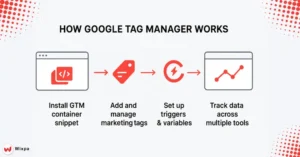
Google Tag Manager acts like a control center for all your tracking codes. GTM makes it easy to handle all your marketing tags in a single platform. This means you can avoid adding JavaScript code to each page by using an automated process. Think of it as a toolbox that holds all your tracking tools in one organized place.
With this tag management system, you don’t need to constantly update your source code. You can add or adjust tracking pixels instantly. We do not need any developers. GTM makes it easy to add Facebook Pixel, Google Ads conversion tracking, or custom HTML tags.
Key Features of GTM
The Manager container is your workspace. Here, we store all tags, triggers, and variables. You can set up tracking tags. They activate when users interact, like clicking buttons, submitting forms, or viewing pages. The platform includes built-in templates for popular services, making setup easier for beginners.
Preview mode in GTM helps you test your changes safely before they go live. This feature stops broken tracking. It makes sure your tags work well on all pages. The version control system tracks all changes. This way, you can return to earlier configurations without difficulty if needed.
Benefits of Using GTM
- Implementing a tag management system offers significant advantages for website owners.
- Reduces dependency on developers for tracking code updates, speeding up marketing campaigns.
- A centralized system simplifies the maintenance and organization of all tracking codes in one location.
- GTM improves website loading speed by loading tags asynchronously.
- Ensures tracking codes don’t slow down page load times, enhancing user experience and SEO performance.
Understanding Google Analytics (GA4)
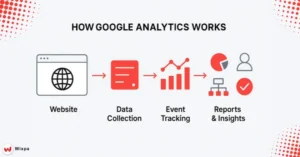
Google Analytics 4 is the newest version of web analytics. It replaces Universal Analytics as Google’s main analytics platform. GA4 emphasizes event-driven analytics. This means it tracks user actions as events, not pageviews. This website analytics tool provides insights into user behavior.
Key Features of GA4
GA4 captures user interactions through event-based tracking, eliminating the need for additional code on basic events. The platform has improved measurement features. It tracks file downloads, outbound clicks, and video engagement without requiring manual input. With cross-domain tracking, you can understand user journeys across different domains.
With data streams, you can unify web and app data under a single property. This unified approach offers clearer audience insights. You get a clear view of the entire customer journey at every interaction.
Benefits of Using GA4
GA4 has advanced analytics features. These include predictive metrics that forecast user behavior and possible revenue. The platform’s machine learning features show insights about your audience. They also find conversion opportunities you might miss.
GA4’s privacy controls help you meet data protection rules. You can still collect useful user data. The platform prepares for a cookieless future. It applies modeling and machine learning to close data gaps.
What are the key differences between GTM and GA4?
Roles and functionalities
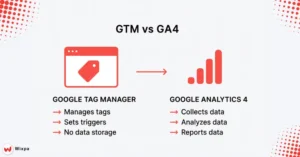
The fundamental difference lies in their primary functions. Google Tag Manager helps you manage tracking codes. Google Analytics lets you analyze and report data. With GTM, you control how data is gathered, and GA4 helps you understand what it shows and why it’s important.
GTM doesn’t store or analyze data. It ensures that your tracking codes function when you meet certain conditions. Google Analytics collects and processes user data. It presents your information through straightforward reports and dashboards.
Ease of Use and Interface Design
GTM’s interface focuses on tags, triggers, and variables. This can confuse beginners. Once you understand these key ideas, managing multiple tracking codes on the platform becomes easy. The learning curve involves understanding how different triggers activate your tags.
Google Analytics focuses on data visualization and reporting. Its interface highlights charts, graphs, and tables. These tools help you understand user behavior patterns. New users usually find GA4’s reporting interface easier to use. It looks like other data analysis tools.
Data Storage and Reporting Capabilities
GTM does not keep any user interaction data for an extended period. It serves as a middleman. It gathers data and sends it to platforms such as Google Analytics, Facebook Pixel, or Google Ads. Think of GTM like a postal service. It delivers data packages to the right places.
Google Analytics keeps past user data for analysis. It also generates detailed reports on website performance, user demographics, and conversion metrics. This data helps inform your digital marketing strategies and business decisions.
When Should You Use Google Tag Manager
- GTM is essential for managing many marketing tags across your website.
- Benefits of GTM for specific scenarios:
- Streamlines tag management for businesses using Google Ads, Facebook ads, and other marketing campaigns.
- Great for local businesses using various advertising platforms in their marketing, whether in-house or through an agency.
- Ideal for e-commerce sites with complex tracking needs, such as:
- Enhanced e-commerce tracking.
- Shopping cart abandonment pixels.
- Conversion tracking made possible without editing the main website code.
GTM for Non-Technical Users
Small business owners and marketers without coding experience can still leverage GTM effectively. The platform’s built-in templates handle most common tracking scenarios, requiring minimal technical knowledge. Many local marketing consultants suggest GTM. It helps business owners track changes on their own.
The visual interface helps non-technical users understand how their tracking works. You can check which tags are triggered on specific pages. This helps you troubleshoot issues by allowing you to avoid digging into complex JavaScript code.
When Should You Use Google Analytics?
Google Analytics is key for getting detailed insights about website visitors and their behaviors. GA4 gives you detailed reports to find which marketing campaigns give the best return on investment. GA4 helps bloggers and content creators understand which articles their audience connects with.
Service-based businesses enjoy GA4’s conversion tracking capabilities. With GA4, you can monitor form conversions, calls, and appointments to understand how well your website performs.
Advanced Analytics with GA4
GA4 uses machine learning. This makes it essential for businesses that want to harness predictive analytics. The platform can spot users who are likely to convert. It can also predict revenue from certain audience segments. These insights help optimize your marketing budget allocation and identify growth opportunities.
Custom reporting features allow you to create tailored dashboards for different stakeholders. Marketing teams can track campaign performance. Meanwhile, executives can see high-level business metrics. They can do this all on the same platform.
How do GTM and GA4 work together?
Benefits of Integration
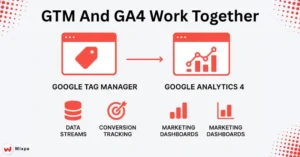
Combining Google Analytics and Tag Manager creates a powerful tracking and analytics ecosystem for your business. Google Tag Manager takes care of setting up your GA4 Measurement ID, while Google Analytics processes and reports the data it collects. This integration ensures accurate data collection and simplifies tag management, making it easier to manage your marketing setup.
The strength of Google Analytics vs Tag Manager lies in how they work together. You can set up advanced tracking configurations without modifying your website’s source code. With GTM, you can implement custom events, enhanced e-commerce tracking, and audience pixels, and then view all results directly in your Google Analytics reports.
Streamlined Event Tracking
The trigger system in GTM integrates effortlessly with GA4’s event tracking. You can set up custom triggers to capture user actions. This data is then sent directly to Google Analytics. This approach provides more granular tracking than traditional pageview-based analytics.
You could track how long users read blog posts. You might also check when they scroll to certain sections. Plus, see which call-to-action buttons get the most clicks. This detailed user interaction data helps optimize your content and conversion funnels.
Enhanced Conversion Measurement
The GTM and GA4 combination excels at tracking complex conversion paths. You can set up several conversion tracking codes with GTM. Use GA4’s attribution models to find out which marketing channels benefit your business the most.
This integration particularly benefits businesses with longer sales cycles or many touchpoints. You can track email sign-ups, content downloads, and demo requests as separate events. This helps you see how each one leads to final conversions.
How do you set up Google Tag Manager?
- Create your GTM account and set up a new container for your website. Google provides a unique GTM container ID that identifies your specific implementation.
- Install the GTM container code in two locations on every page of your website. Place the first snippet in your HTML’s head section, and the second just after the opening body tag.
- Set up your first tag by creating a Google Analytics configuration tag. Use your GA4 Measurement ID. This tag should fire on all pages to ensure comprehensive tracking.
- Test your setup in GTM’s preview mode first. Do this first, before rolling out changes to the live site.
Common Setup Mistakes
Many beginners forget to publish their GTM changes after creating tags and triggers. In GTM, updates stay in preview mode until you choose to publish them. A common mistake is setting up triggers incorrectly. This can lead to tags firing too often or not firing at all.
Double-firing issues happen when both GTM and direct Google Analytics are active at the same time. Remove any tracking codes from your source code before using GTM. This helps prevent duplicate data collection.
Setting Up Google Analytics
- Connect your GA4 property to your website through direct code installation or Google Tag Manager (GTM).
- GTM is often easier for beginners as it centralizes tracking code management.
- Set up data streams to align with your website domain.
- Enable enhanced measurement features for automatic event tracking.
- Set up goals that reflect your key business outcomes. For example, track form submissions, purchases, or milestones for content engagement.
- Link your Google Analytics account with:
- Google Search Console gives you insights into your organic search performance.
- Google Ads: Track paid advertising effectiveness.
Common FAQs
It’s a common misconception among beginners that you must choose one: Google Tag Manager or Google Analytics. But, these tools actually work well together instead of against each other. GTM takes care of tag deployment. GA4 focuses on data analysis. You usually need both for complete website analytics.
Another misconception suggests that GTM makes websites slower. A proper setup of GTM can boost page load times. It achieves this through effective management of the loading process for tracking codes.
Considerations for Marketers
Small businesses should first set up basic Google Analytics tracking. Then, they can move on to advanced GTM configurations. Begin with standard page tracking and basic conversion measurement. Then, add more advanced tracking as your needs increase.
Local businesses gain the most by focusing on conversion tracking and audience insights. This is better than getting tangled in complex event tracking setups. Knowing your customer demographics and where referrals come from can give you quicker insights than detailed user interaction data.
Choosing the Right Analytics Setup for Your Success
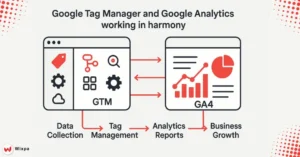
You don’t always have to choose between Google Analytics vs Tag Manager because these tools are most powerful when used together. GTM simplifies the setup and management of tracking codes, while Google Analytics transforms raw data into actionable business insights.
A smart approach is to begin with a basic Google Analytics setup to understand your website visitors, then use GTM to manage multiple marketing tags with ease. This step-by-step method allows you to get comfortable with each platform without feeling overwhelmed by complex setups.
By combining Google Analytics and Tag Manager, your local marketing can be significantly improved. This approach helps you track customer interactions at physical locations and measure online conversions that drive more foot traffic to your business.
FAQ
1. Why should businesses use Google Tag Manager?
Google Tag Manager simplifies tracking code management without needing constant developer help. It boosts efficiency, speeds up tag deployment, and reduces website errors. Businesses can easily manage analytics, remarketing, and conversion pixels in one place. Tools like Wixpa also provide expert GTM support for businesses.
2. Is Google Tag Manager better than manually adding tags?
Yes. GTM eliminates the need to edit website code repeatedly, reducing risks of errors and saving time. It centralizes all tags in one dashboard. Apps like Wixpa Tag Manager help Shopify store owners manage and automate tracking easily.
3. Can Google Tag Manager improve website performance?
Absolutely. GTM loads asynchronously, meaning tags don’t slow down your site. It ensures better performance and a smoother user experience compared to hard-coded tags. Platforms like Wixpa specialize in optimizing GTM setups for performance-focused businesses.
4. Do I still need Google Analytics if I use Google Tag Manager?
Yes. GTM doesn’t replace Google Analytics; it manages and deploys your tracking codes. Analytics collects and reports data, while GTM organizes the process. For Shopify users, Tag Manager makes GA4 integration seamless.
5. How does Google Tag Manager help marketers?
Marketers can launch campaigns faster with GTM by adding tracking pixels, conversion codes, and remarketing tags without IT delays. This flexibility allows quicker testing and optimization. Businesses using Wixpa benefit from expert GTM configuration for measurable marketing success.